
Mastodon ist eine dezentrale, Open-Source-Mikroblogging-Plattform, die sich in den letzten Jahren als Alternative zu herkömmlichen sozialen Netzwerken wie Twitter etabliert hat. Entwickelt von Eugen Rochko im Jahr 2016, bietet Mastodon Nutzern die Möglichkeit, auf unabhängigen Servern – sogenannten Instanzen – zu kommunizieren und Inhalte zu teilen. Diese Instanzen sind Teil des „Fediverse“, eines Netzwerks von Plattformen, die über das ActivityPub-Protokoll miteinander verbunden sind. Anders als bei zentralisierten Plattformen haben Nutzer bei Mastodon die Freiheit, eine Instanz zu wählen oder sogar ihre eigene zu betreiben, wodurch sie mehr Kontrolle über ihre Daten und die Art der Moderation erhalten. Ohne Werbung und mit einem starken Fokus auf Datenschutz und Community-getriebene Moderation ist Mastodon ein spannendes Beispiel dafür, wie soziale Medien wieder in die Hände der Nutzer gelegt werden können.
| Datum | Änderungen |
|---|---|
| 08.11.2022 | Erstellung dieser Anleitung |
| 27.11.2022 | Kapitel hinzugefügt, welches den Benutzer von Hand anlegt |
| 01.06.2023 | Anpassung der Traefik Labels |
| 03.11.2024 | Update auf Mastodon Version 4.3.1 |
1. Systemanforderungen
Dazu habe ich im Internet nichts genaues gefunden. Beim Erstellen dieser Anleitung habe ich einen vServer mit 2 Cores + 2GB Ram genutzt. Dabei kam es immer zu Fehlern, da er komplett ausgelastet war. Bei 4 Cores + 4 GB RAM lief alles ohne Probleme.
2. Grundvoraussetzung
- Docker & Docker Compose v2 (Debian / Ubuntu)
- Traefik V3 Installation, Konfiguration und CrowdSec-Security
3. Verzeichnis anlegen
Im ersten Schritt legen wir uns ein Verzeichnis an.
mkdir -p /opt/containers/mastodon/publicCode-Sprache: PHP (php)Anschließend passen wir noch die Rechte an, damit wir später auch Dateien hochladen können.
chown -R 991:991 /opt/containers/mastodon/publicCode-Sprache: PHP (php)4. Docker Compose erstellen
Nun erstellen wir uns eine Docker Compose Datei.
nano /opt/containers/mastodon/docker-compose.ymlKopiert nun folgenden Inhalt:
services:
  db:
    restart: unless-stopped
    image: postgres:14-alpine
    shm_size: 256mb
    networks:
      - default
    healthcheck:
      test: ['CMD', 'pg_isready', '-U', 'postgres']
    volumes:
      - ./postgres14:/var/lib/postgresql/data
    environment:
      - 'POSTGRES_HOST_AUTH_METHOD=trust'

  redis:
    restart: unless-stopped
    image: redis:7-alpine
    networks:
      - default
    healthcheck:
      test: ['CMD', 'redis-cli', 'ping']
    volumes:
      - ./redis:/data

  web:
    image: ghcr.io/mastodon/mastodon:v4.3.1
    restart: unless-stopped
    env_file: .env.production
    command: bundle exec puma -C config/puma.rb
    networks:
      - default
      - proxy
    healthcheck:
      test: ['CMD-SHELL',"curl -s --noproxy localhost localhost:3000/health | grep -q 'OK' || exit 1"]
    depends_on:
      - db
      - redis
    volumes:
      - ./public/system:/mastodon/public/system
    labels:
      - "traefik.enable=true"
      - "traefik.http.routers.mastodon.entrypoints=websecure"
      - "traefik.http.routers.mastodon.rule=(Host(`mastodon.fatalplayers.de`))"
      - "traefik.http.routers.mastodon.tls=true"
      - "traefik.http.routers.mastodon.tls.certresolver=http_resolver"
      - "traefik.http.routers.mastodon.service=mastodon"
      - "traefik.http.services.mastodon.loadbalancer.server.port=3000"
      - "traefik.docker.network=proxy"
      - "traefik.http.routers.mastodon.middlewares=default@file"

  streaming:
    image: ghcr.io/mastodon/mastodon-streaming:v4.3.1
    restart: unless-stopped
    env_file: .env.production
    command: node ./streaming/index.js
    networks:
      - proxy
      - default
    healthcheck:
      test: ['CMD-SHELL', "curl -s --noproxy localhost localhost:4000/api/v1/streaming/health | grep -q 'OK' || exit 1"]
    depends_on:
      - db
      - redis
    labels:
      - "traefik.enable=true"
      - "traefik.http.routers.mastodon-api.entrypoints=websecure"
      - "traefik.http.routers.mastodon-api.rule=(Host(`mastodon.fatalplayers.de`) && PathPrefix(`/api/v1/streaming`))"
      - "traefik.http.routers.mastodon-api.tls=true"
      - "traefik.http.routers.mastodon-api.tls.certresolver=http_resolver"
      - "traefik.http.routers.mastodon-api.service=mastodon-api"
      - "traefik.http.services.mastodon-api.loadbalancer.server.port=4000"
      - "traefik.docker.network=proxy"
      - "traefik.http.routers.mastodon-api.middlewares=default@file"

  sidekiq:
    image: ghcr.io/mastodon/mastodon:v4.3.1
    restart: unless-stopped
    env_file: .env.production
    command: bundle exec sidekiq
    depends_on:
      - db
      - redis
    networks:
      - proxy
      - default
    volumes:
      - ./public/system:/mastodon/public/system
    healthcheck:
      test: ['CMD-SHELL', "ps aux | grep '[s]idekiq\ 6' || false"]


networks:
  proxy:
    external: trueCode-Sprache: PHP (php)
Noch anzupassen:
- 2x eure Domain bei Traefik (mastodon.euredomain.de) anpassen
5. Konfigurationsdatei erstellen
Nun erstellen wir uns noch eine leere Datei, damit unsere Container korrekt starten.
touch /opt/containers/mastodon/.env.productionIn die Datei schreiben wir nichts.
6. Images downloaden
Nun laden wir uns alle Images herunter. Dazu gebt ihr folgendes ein:
docker compose -f /opt/containers/mastodon/docker-compose.yml pull7. Mastodon Setup starten
Nun starten wir das Setup. Dazu gebt ihr folgenden Befehl ein:
cd /opt/containers/mastodon
docker compose run web bundle exec rake mastodon:setup
So sieht das Setup bei mir aus. In Klammern steht immer der Wert, welcher genommen wird, wenn ihr einfach ENTER drückt. Bei dem Setup reicht es, wenn ihr bei Domain und E-Mail eure Daten eingebt. Den Rest könnt ihr einfach mit ENTER bestätigen.
Your instance is identified by its domain name. Changing it afterward will break things.
Domain name: mastodon.euredomain.de

Single user mode disables registrations and redirects the landing page to your public profile.
Do you want to enable single user mode? No

Are you using Docker to run Mastodon? Yes

PostgreSQL host: db
PostgreSQL port: 5432
Name of PostgreSQL database: postgres
Name of PostgreSQL user: postgres
Password of PostgreSQL user:
Database configuration works! 🎆

Redis host: redis
Redis port: 6379
Redis password:
Redis configuration works! 🎆

Do you want to store uploaded files on the cloud? No

Do you want to send e-mails from localhost? No
SMTP server: smtp.euredomain.de
SMTP port: 587
SMTP username: mail@euredomain.de
SMTP password:
SMTP authentication: plain
SMTP OpenSSL verify mode: none
Enable STARTTLS: auto
E-mail address to send e-mails "from": mail@euredomain.de
Send a test e-mail with this configuration right now? no

Do you want Mastodon to periodically check for important updates and notify you? (Recommended) Yes

This configuration will be written to .env.production
Save configuration? Yes
Below is your configuration, save it to an .env.production file outside Docker:

# Generated with mastodon:setup on 2024-11-03 08:48:32 UTC

LOCAL_DOMAIN=mastodon.euredomain.de
SINGLE_USER_MODE=false
SECRET_KEY_BASE=755df2aa68bfc641c22f49e0e5dcf4ad99472e350a28532b74c4532be0bd4b6060f9002e1eba355cb6786f30f088cb73ac25af7c579b9b0c5e3bbc80cf6e1871
OTP_SECRET=b92e2324ed5bc18e9fed8ce46249531814393a954d45ba220f6c84103b473f1b2dd452cef4847b083719814c785c1c3a4213e65c3a2b38801e5df58e7978115e
ACTIVE_RECORD_ENCRYPTION_DETERMINISTIC_KEY=KMkqRfiErULll0USN7vJiWL1Vw7R843k
ACTIVE_RECORD_ENCRYPTION_KEY_DERIVATION_SALT=fyUehxVG9rOZSmo2Iq2m4a7fM7RAs9Nk
ACTIVE_RECORD_ENCRYPTION_PRIMARY_KEY=DujMCkmpX1UDMTDltrZzGYCdHJz6vfgr
VAPID_PRIVATE_KEY=Tz3JBkq-ic2OTHKE3C_bxnNu-qD8EPPJ48MMq4mOEY4=
VAPID_PUBLIC_KEY=BPJ4pdfW9NDV7Nxw0CeiR748GGp-MtY7T7iiTlyTXDay9qsR8T-Y4eNhdNwzvgws1lTB22dEjw-NDvZEo8B1aM0=
DB_HOST=db
DB_PORT=5432
DB_NAME=postgres
DB_USER=postgres
DB_PASS=
REDIS_HOST=redis
REDIS_PORT=6379
REDIS_PASSWORD=
SMTP_SERVER=smtp.euredomain.de
SMTP_PORT=587
SMTP_LOGIN=mail@euredomain.de
SMTP_PASSWORD=superSicher
SMTP_AUTH_METHOD=plain
SMTP_OPENSSL_VERIFY_MODE=none
SMTP_ENABLE_STARTTLS=auto
SMTP_FROM_ADDRESS=mail@euredomain.de

It is also saved within this container so you can proceed with this wizard.

Now that configuration is saved, the database schema must be loaded.
If the database already exists, this will erase its contents.
Prepare the database now? Yes
Running `RAILS_ENV=production rails db:setup` ...


I, [2024-11-03T08:48:40.326249 #39]  INFO -- : [dotenv] Loaded .env.production
Database 'postgres' already exists
Done!

All done! You can now power on the Mastodon server 🐘

Do you want to create an admin user straight away? Yes
Username: admin
E-mail: mail@euredomain.de
You can login with the password: 8ce1bc378fec3db3f120f24f83e70be5
You can change your password once you login.Code-Sprache: CSS (css)
Nun beenden wir die Docker Container.
docker compose -f /opt/containers/mastodon/docker-compose.yml downAnschließend kopiert ihr die angezeigte Konfiguration in die noch leere Konfigurationsdatei von eben.
nano /opt/containers/mastodon/.env.productionInhalt bei mir (kopiert aus dem Dialog von eben):
# Generated with mastodon:setup on 2024-11-03 08:48:32 UTC

LOCAL_DOMAIN=mastodon.euredomain.de
SINGLE_USER_MODE=false
SECRET_KEY_BASE=755df2aa68bfc641c22f49e0e5dcf4ad99472e350a28532b74c4532be0bd4b6060f9002e1eba355cb6786f30f088cb73ac25af7c579b9b0c5e3bbc80cf6e1871
OTP_SECRET=b92e2324ed5bc18e9fed8ce46249531814393a954d45ba220f6c84103b473f1b2dd452cef4847b083719814c785c1c3a4213e65c3a2b38801e5df58e7978115e
ACTIVE_RECORD_ENCRYPTION_DETERMINISTIC_KEY=KMkqRfiErULll0USN7vJiWL1Vw7R843k
ACTIVE_RECORD_ENCRYPTION_KEY_DERIVATION_SALT=fyUehxVG9rOZSmo2Iq2m4a7fM7RAs9Nk
ACTIVE_RECORD_ENCRYPTION_PRIMARY_KEY=DujMCkmpX1UDMTDltrZzGYCdHJz6vfgr
VAPID_PRIVATE_KEY=Tz3JBkq-ic2OTHKE3C_bxnNu-qD8EPPJ48MMq4mOEY4=
VAPID_PUBLIC_KEY=BPJ4pdfW9NDV7Nxw0CeiR748GGp-MtY7T7iiTlyTXDay9qsR8T-Y4eNhdNwzvgws1lTB22dEjw-NDvZEo8B1aM0=
DB_HOST=db
DB_PORT=5432
DB_NAME=postgres
DB_USER=postgres
DB_PASS=
REDIS_HOST=redis
REDIS_PORT=6379
REDIS_PASSWORD=
SMTP_SERVER=smtp.euredomain.de
SMTP_PORT=587
SMTP_LOGIN=mail@euredomain.de
SMTP_PASSWORD=superSicher
SMTP_AUTH_METHOD=plain
SMTP_OPENSSL_VERIFY_MODE=none
SMTP_ENABLE_STARTTLS=auto
SMTP_FROM_ADDRESS=mail@euredomain.deCode-Sprache: PHP (php)
8. Mastodon starten
Dazu gebt ihr einfach folgenden Befehl ein:
docker compose -f /opt/containers/mastodon/docker-compose.yml up -dWartet nun einige Minuten und geht anschließend auf eure Homepage mastodon.euredomain.de
Dort solltet ihr folgendes sehen:
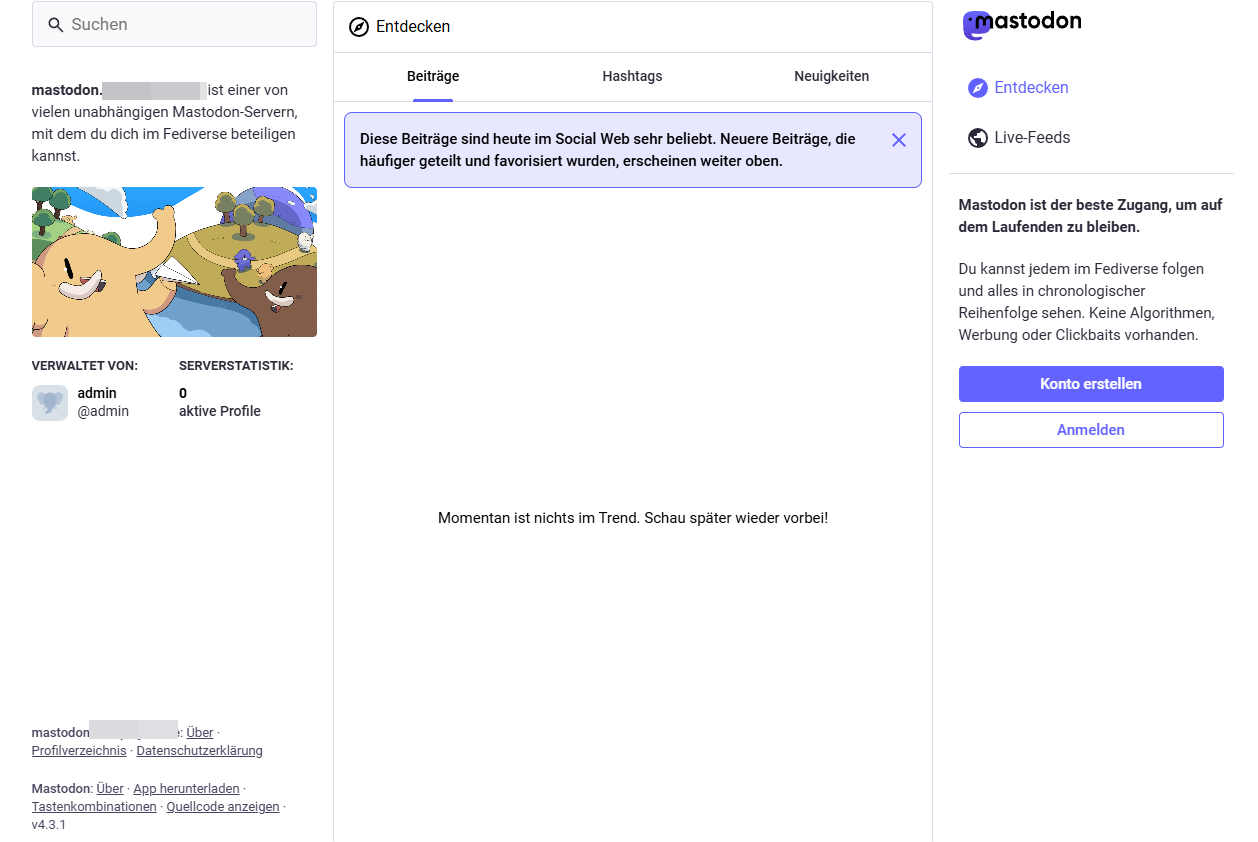
9. Als Administrator anmelden
Nun melden wir uns mit dem Administrator Account aus Schritt 7 an. Anschließend solltet ihr folgendes sehen:
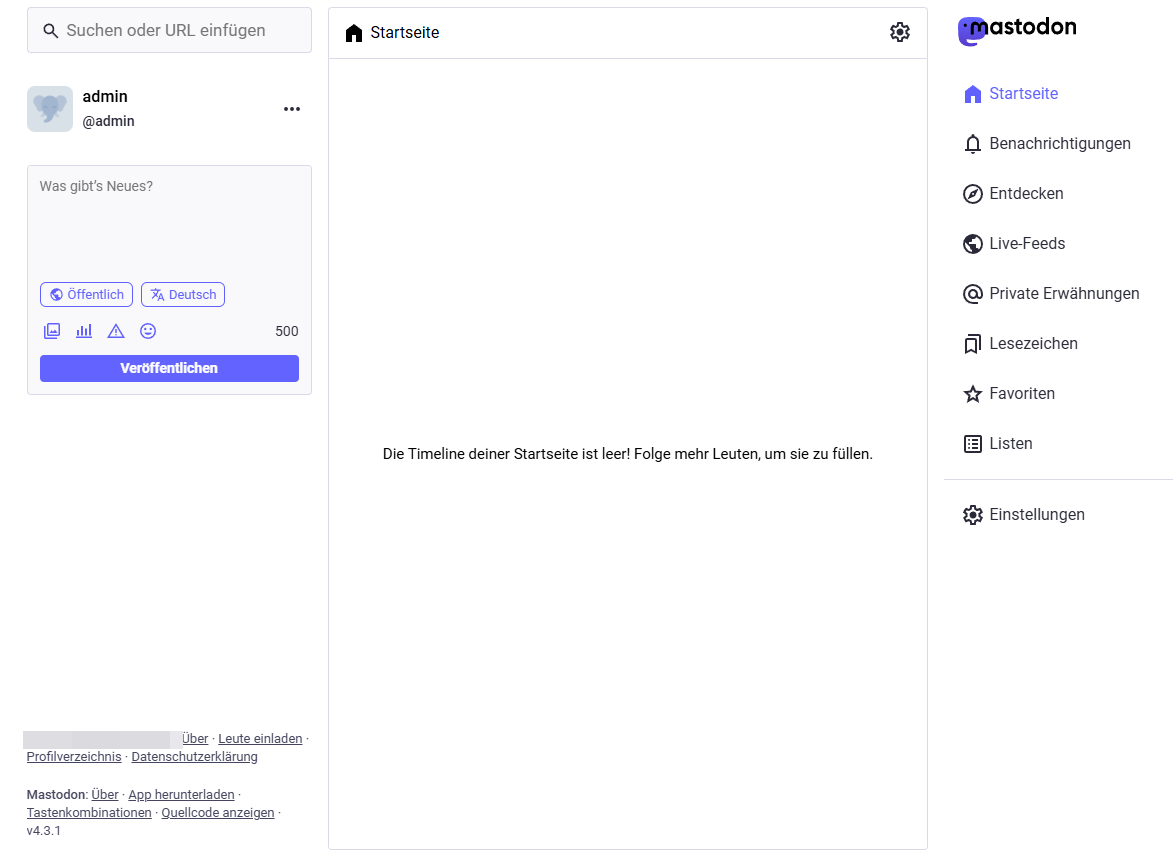
10. Admin Einstellungen öffnen
Nachdem ihr angemeldet seid, klickt ihr auf “Einstellungen”.
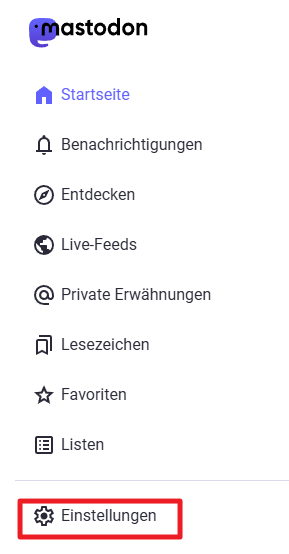
Hier wählt ihr nun ziemlich weit unten “Administration” aus.
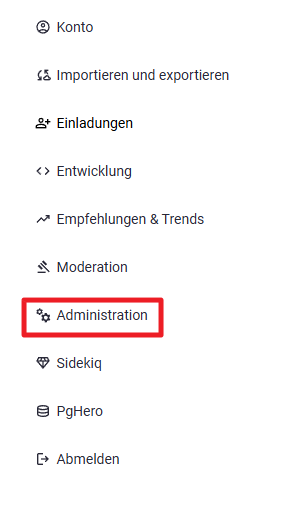
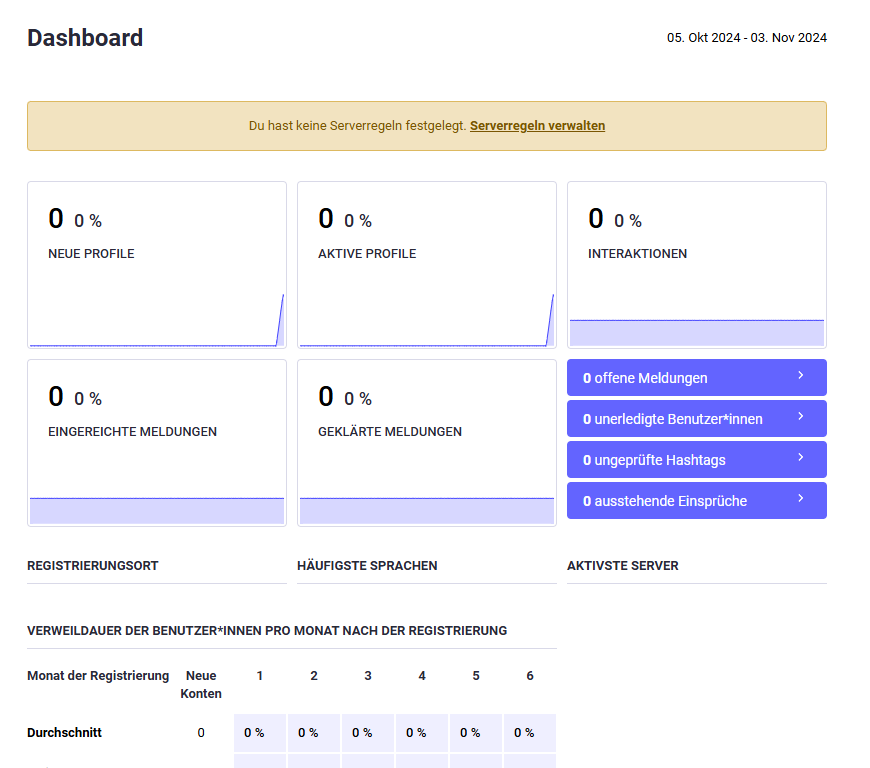
Nun seht ihr die Admin Einstellungen
12. Quelle
https://github.com/mastodon/mastodon






























Wenn man die maximale Zeichenanzahl ändern will gibt es hier einen kleinen Trick:
https://du.nkel.dev/blog/2023-12-12_mastodon-docker-rootless/#max_post_chars
Falls jemand Probleme mit unregelmäßigen “Gateway timeouts” hat und nicht weiß woher die kommen, bei uns war das Problem “Traefik”. Mastodon war immer wieder mal im falschen Netzwerk.
Abhilfe schaffte folgender Eintrag im traefik.yml:
Das schaut dann ungefähr so aus:
services:
 traefik:
   container_name: ${SERVICES_TRAEFIK_CONTAINER_NAME:-traefik}
   command:
     - "--providers.docker.network=proxy"
   depends_on:
     crowdsec:
lg
Max
Anleitung funktioniert wunderbar. Hat jemand eine ordentliche Anleitung für backup und restore? Also redis und public Ordner sind ja klar und für die PostgreSQL ein dump machen, aber wie spiele ich das bei einem restore ordentlich ein?